
Messages
Interface Server → Messages is the record of individual messages: what arrived, and what
happened to it at each destination.
Finding a message
The list is filtered rather than browsed — pick a Start Date and End Date, and the
Interface you are interested in, then search. Additional Filters narrow it further,
including by status.
The fastest way in is usually from the Interfaces list:
selecting a route's Received or Failed count opens this page already filtered to those
messages.
What you see
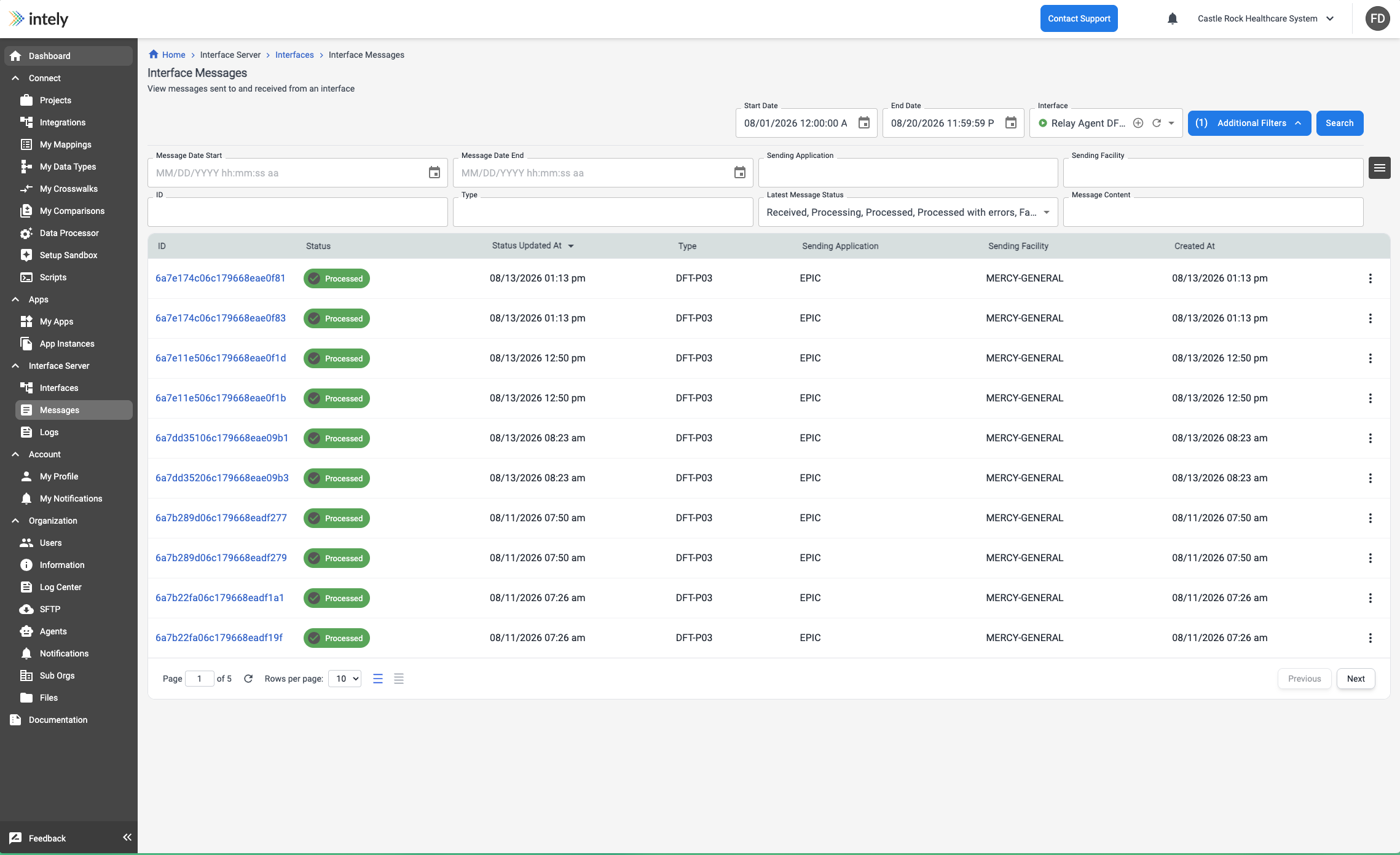
| Column | Meaning |
|---|---|
| ID | The message's identifier — use it when raising an issue with support |
| Status | Where the message got to |
| Status Updated At | When it last changed state |
| Type | The message type, such as an ADT or DFT event |
| Sending Application | The application that sent it, from the message header |
| Sending Facility | The facility it came from, from the message header |
| Created At | When it arrived |
Sending Application and Sending Facility are read from the message itself, which makes
them the practical way to tell traffic apart when several systems feed one route.
Reading a status
A message's outcome is recorded per destination, not just overall. A message delivered to one
destination and rejected by another is a partial outcome, and the per-destination detail is where
the reason lives.
| Status | Meaning |
|---|---|
| Received | Arrived, not yet worked on |
| Processing | In flight |
| Processed | Every destination completed |
| Processed with errors | Some destinations completed, others did not |
| Failed | Delivery did not complete |
Processed with errors is the status worth understanding. It means the message was fine and
some deliveries worked — so the overall counts look partly healthy while one destination is
quietly failing. Filter on it deliberately; it will not show up if you only look for failures.
A message that could not be accepted at all never reaches a destination, and the cause is the
message or the source configuration rather than anything downstream.
Opening a message
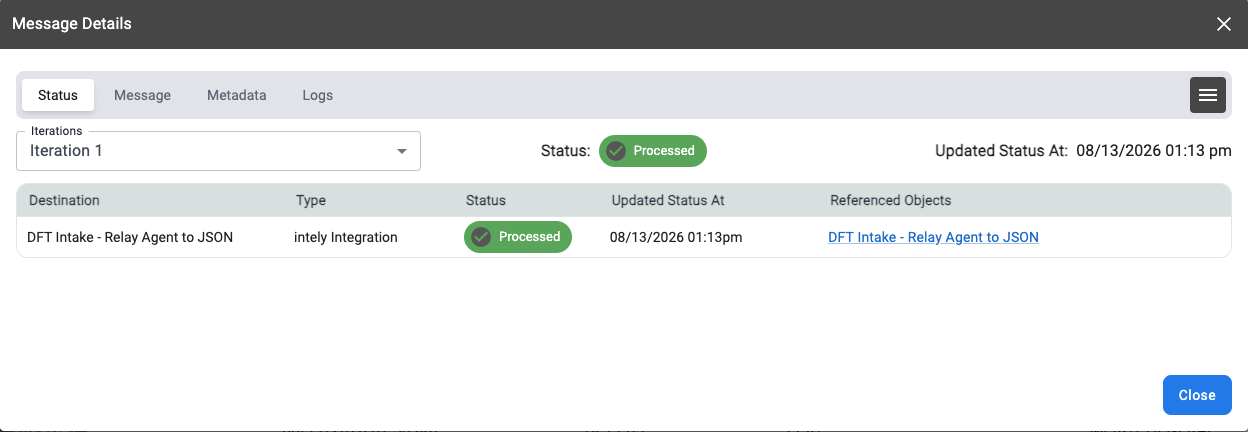
Selecting a message opens Message Details, with tabs for Status, Message,
Metadata and Logs — the message as received, and what happened to it.
The Status tab lists one row per destination: its type, its own status, when that last
changed, and a link to the referenced object it delivered to, such as the integration that
handled it. Where a message was retried, each attempt appears as a separate iteration,
selectable at the top — so you can see a delivery that failed once and succeeded on retry.
When a message is missing entirely
If a message you expect is not listed at all, it did not arrive. Check the source — for a file
source, whether the file landed in the watched directory and matched the file name pattern; and
check Logs, which records files that were seen and refused.
Updated 2 months ago